- 1. Locate the Safari menu bar. (A picture of this menu bar is located in step 1 of the blog post below this blog post.)
- 2. In the Safari menu bar, single click the word "Safari"
- 3. Locate, highlight, and single click the words "Empty Cache..." (A picture of this is also located in between steps 3 & 4 of the blog post below this blog post.)
- 4. You should see the following picture:

- 5. Single click the word "Empty"
- 6. You have just deleted the temporary internet files from the Safari browser.
- 7. You should do this about once a week depending on how much you "surf the net" to help keep your MAC running good for many more years.
Showing posts with label Safari. Show all posts
Showing posts with label Safari. Show all posts
08 June 2009
Delete temp files in Safari Version (3.2.3)
Some MAC users, who choose to use Safari to "surf the net", have long wondered how to delete the temporary internet files from the Safari browser and some don't really care since their MAC has been running good for many years. Deleting temp files from the browser will help ensure that your MAC keeps running good for many years and will help your MAC from slowing down while you are in cyberspace. Your friendly neighborhood IT Department has come with 5 steps that anyone can do to delete the temp files in Safari for a MAC operating system. Make sure the Safari browser is open and do the following:


06 June 2009
Safari Version (3.2.3) Homepage
For those MAC users using Safari and would like to change their homepage to the all new Biltmore Baptist Church web site, or any other site, but don't know how to do this can now rest easy. Your friendly neighborhood BBC IT Department has found an easy way for you to do this. Make sure Safari is open and do the following:
- 1. Locate the Safari menu bar which should look something like the following picture.

- 2. Highlight and single click the word "Safari", located between the Apple symbol and the word "File".
- 3. Another window should open up and it should look like the following.
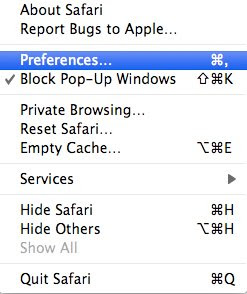
- 4. Highlight and single click the word "Preferences.." as illustrated in the picture above.
- 5. The next window that opens up should look like the following picture.
- 6. Make sure you are on the "General" tab, go to the 3rd text box down, and input the web site that you desire to be your homepage.
- 7. Once you have entered your favorite web site in the text box, click the little red circle located above the "General" tab and you are all set.


Subscribe to:
Posts (Atom)